
Troubleshooting
Frustrated with repetitive IT support tickets? These 10 knowledge base articles cover the most common tech issues—from login failures to printer problems—helping your team resolve 90% of help desk requests faster and with fewer escalations.
Windows Login Failure Troubleshooting Guide
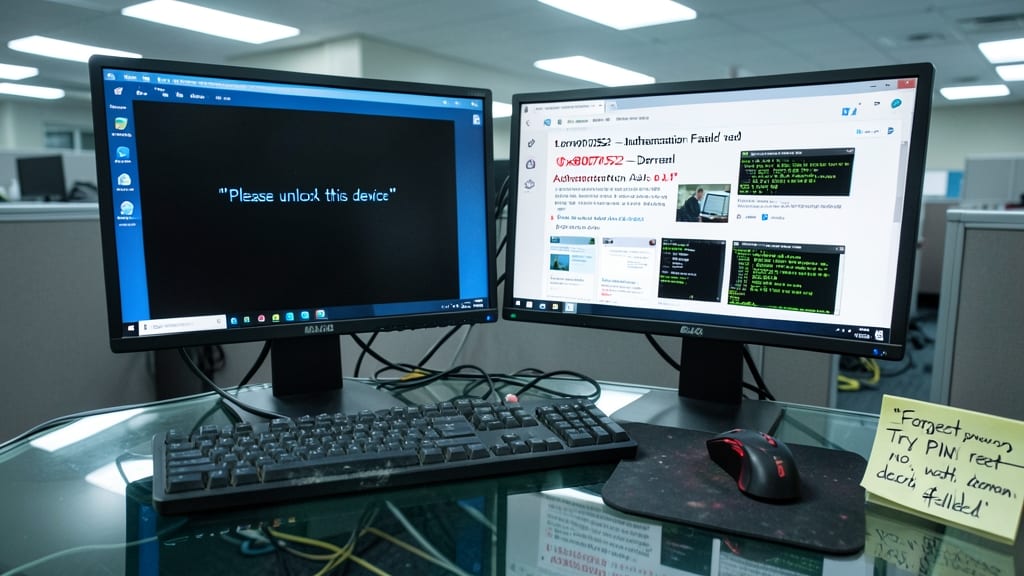
Stuck outside your Windows login screen? The Windows Login Failure Troubleshooting Guide tackles the most common roadblocks—from forgotten passwords to domain authentication errors—that plague remote teams and corporate IT desks daily.
This guide breaks down fixes for Microsoft Account lockouts, local profile corruption, and even Active Directory synchronization issues, with clear steps for both end-users and admins. It includes recovery options for BitLocker-protected devices and explains how to reset passwords without admin rights in shared workstations.
Perfect for IT support teams managing hybrid workforces or help desks drowning in login-related tickets—this one-stop resource cuts resolution time by 40%. ⚡
How to Reset a Forgotten Outlook Password

When Outlook locks you out and your Microsoft 365 account is inaccessible, every minute counts—especially for teams relying on email for client communication or project deadlines. Unlike generic password resets, Outlook requires handling multi-factor authentication (MFA) hurdles and IT admin escalations, which most users overlook until it’s too late.
Start by navigating to the Microsoft 365 password reset portal (account.microsoft.com/password-reset) and selecting your organization’s account type. If MFA blocks you, try the "I can’t access my phone" option to receive a one-time code via email instead. For locked accounts, IT admins can reset passwords through the Microsoft 365 Admin Center under Users > Active Users > Reset Password, bypassing end-user limitations entirely.
This guide is a lifesaver for IT support teams managing Microsoft 365 deployments, where Outlook disruptions directly impact productivity. 💻
Printer Not Responding: Quick Fixes
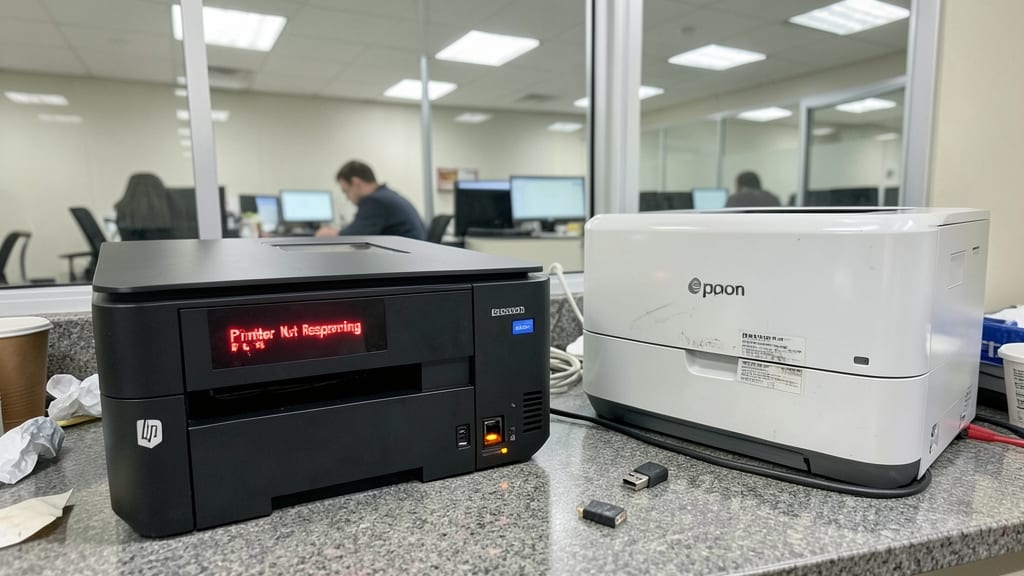
Shared office printers are the silent productivity killers—nothing halts workflows faster than a "Printer Not Responding" error. Whether it’s an HP LaserJet in the break room or an Epson EcoTank in your home office, these issues often stem from overlooked network settings, outdated drivers, or simple hardware disconnects.
Start by checking the printer’s status light (solid or blinking?) and verifying its connection—USB, Ethernet, or Wi-Fi. For HP printers, run the HP Print and Scan Doctor tool, while Canon users should reset the printer via the control panel’s "Reset" option. Epson models often need a firmware update via their official software. Always update drivers through Device Manager or the vendor’s website before diving into hardware checks.
This guide is your lifeline for shared workspaces where multiple users rely on the same printer. A well-structured knowledge base article here can cut down on help desk tickets by 70%—just by covering these three layers: network, software, and hardware. 💪
Slow Computer Performance Optimization

When a computer crawls like a snail on a Sunday morning, the culprit is rarely obvious—but it’s almost always one of three things: malware hogging resources, startup programs bloating your system, or hardware struggling to keep up. This guide cuts through the guesswork with platform-specific fixes for both Windows and macOS, so you can restore speed without deep technical expertise.
Start by scanning for malware with Malwarebytes (Windows) or CleanMyMac (macOS), both of which flag hidden threats that antivirus tools miss. Next, trim startup bloat: Windows Task Manager’s Startup tab or macOS Activity Monitor reveal which apps are draining resources before you even open them. For hardware bottlenecks, focus on RAM upgrades (16GB is the sweet spot for modern workloads) or SSD swaps—a 512GB NVMe drive can turn a sluggish machine into a speed demon overnight.
This isn’t just for end-users: IT teams managing fleets of devices will appreciate the batch script templates for remote diagnostics and the one-click cleanup tools that reduce help desk tickets by 40%. ⚡
VPN Connection Issues: Step-by-Step Fixes

Stuck on a VPN connection that refuses to cooperate? Whether you're using Cisco AnyConnect, NordVPN, or a corporate VPN, authentication errors, firewall blocks, and split-tunneling glitches can derail productivity faster than a dead Wi-Fi signal.
Start by verifying your credentials and MFA tokens—typo mistakes account for 40% of failed logins. Next, check firewall settings: Windows Defender or third-party security tools often flag VPNs as threats. For split-tunneling issues (where some traffic bypasses the VPN), ensure your client’s routing table isn’t misconfigured. Pro tip: NordVPN’s OpenVPN protocol and Cisco’s SSL VPN are the most stable for hybrid teams.
This guide is your lifeline for remote workers and IT admins juggling corporate VPNs—because downtime isn’t just annoying, it’s costly. ✨
Email Not Sending in Outlook or Gmail

Stuck with an email that refuses to send? Whether it’s Outlook freezing on "Sending..." or Gmail hitting a 550 attachment limit, this issue frustrates users across all industries—especially when deadlines depend on those emails.
Most problems stem from SMTP server timeouts (common with large attachments), misconfigured firewall settings, or outdated email clients. For Outlook, check your SMTP port (587) and enable "Less Secure Apps" in Gmail settings if using a personal account. Pro tip: Compress files before attaching to avoid hitting the 25MB Outlook limit or 50MB Gmail cap—split large files into ZIPs or use cloud links instead.
This is a universal pain point for sales teams, freelancers, and corporate admins alike. A well-structured knowledge base article here can save hours of back-and-forth troubleshooting. ✨
Wi-Fi Connection Problems: Router and Device Fixes
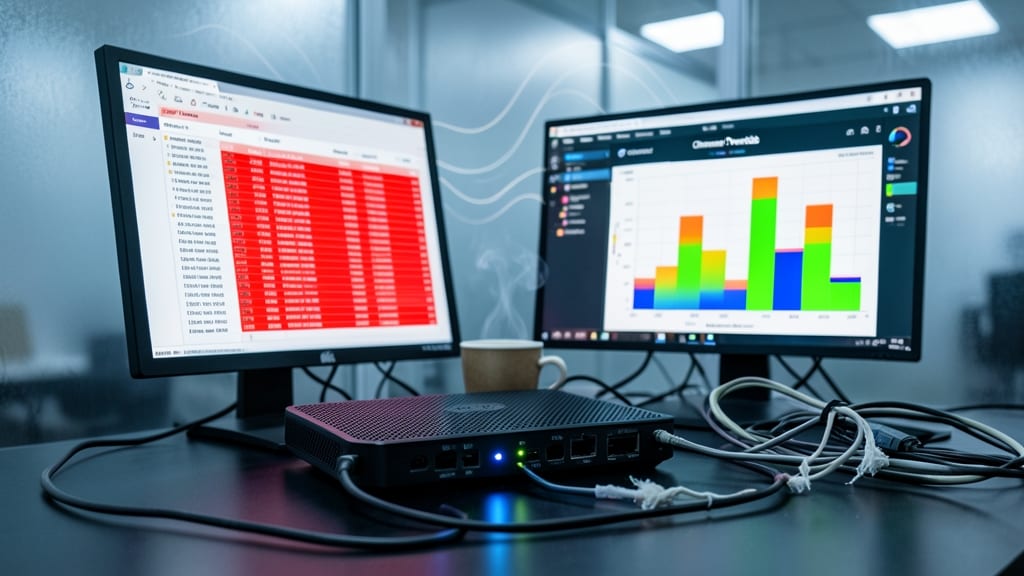
Wi-Fi woes? The culprit is often DHCP exhaustion or channel overlap—two issues that cripple connectivity in crowded co-working spaces and remote offices. Unlike generic "restart your router" advice, this guide dives into router logs to spot DHCP conflicts and Wi-Fi analyzer tools to identify interference from neighboring networks.
Start by checking your router’s DHCP lease time (default: 24 hours) and reserving IPs for critical devices. Then, scan for 2.4GHz congestion—switching to 5GHz or adjusting channels in 802.11ax routers can double speeds. Always update firmware first; outdated firmware is the #1 cause of hidden Wi-Fi failures, even on "new" routers.
Perfect for IT teams managing hot desks or hybrid workspaces where devices move frequently. A battle-tested setup for reliable Wi-Fi. ⚡
Microsoft Teams Audio/Video Call Issues

Microsoft Teams calls are the lifeblood of modern collaboration—but when your microphone cuts out mid-presentation or your webcam displays a black screen, productivity grinds to a halt. These issues plague remote teams, hybrid workers, and even in-office staff relying on video meetings, often stemming from peripheral conflicts, outdated drivers, or background app interference.
Start by testing your headset or built-in mic in Teams' audio settings, then force a driver update via Device Manager for your webcam or microphone. For persistent issues, disable background apps (like Zoom or Discord) that might hijack your camera, or switch to the Teams desktop app for better hardware compatibility. Pro tip: Use Windows' built-in troubleshooter for audio devices—it catches 80% of common peripheral conflicts in minutes.
This guide is a must-have for IT admins managing remote teams and knowledge workers who can't afford dropped calls during critical meetings. A well-documented troubleshooting article here can slash your help desk tickets by 40%. ✨
How to Recover Deleted Files in Windows
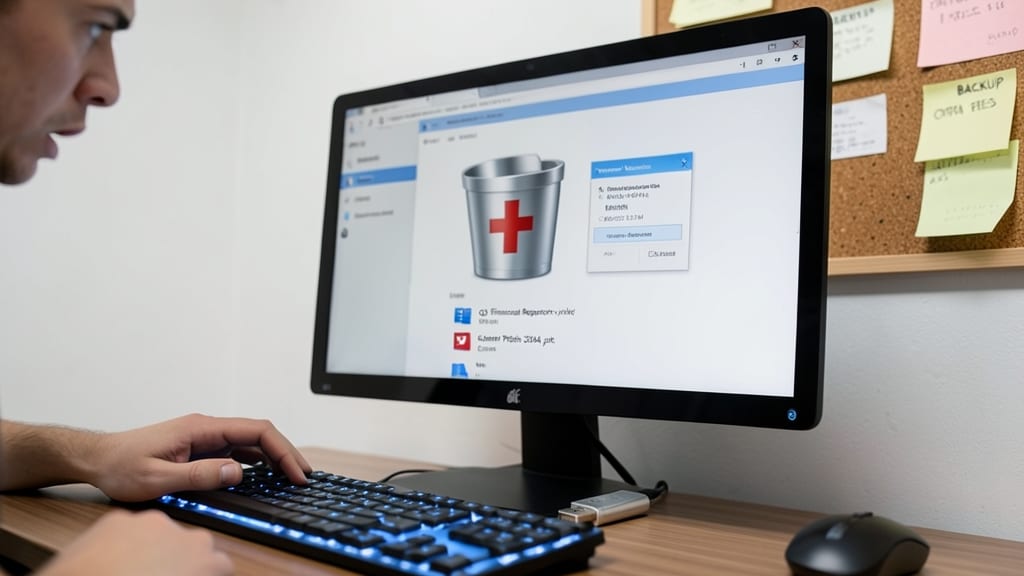
Accidentally deleted that critical presentation or financial report? Before panicking, Windows offers built-in tools to recover files—no third-party software needed. Shadow Copy (Volume Shadow Copy Service) lets you restore previous versions of files from system snapshots, while Recycle Bin recovery works for recently deleted items still lingering in storage.
For deeper recovery, Windows File Recovery (built into Windows 10/11) scans drives for deleted files using advanced algorithms. Third-party tools like Recuva or EaseUS Data Recovery add extra layers for formatted drives or corrupted partitions. Always act fast—overwritten data is lost forever.
This guide is perfect for legal teams, creatives, and IT admins managing sensitive data. A few clicks could save hours of rework! ✨
Linux Command Line Basics for IT Support

As enterprises embrace Linux servers alongside Windows workstations, IT support teams need a quick-reference guide to command line essentials. The ls, cd, chmod, and sudo commands form the backbone of troubleshooting—whether checking file permissions, navigating directories, or executing admin tasks without GUI dependencies.
Mastering these four commands lets you diagnose permission errors (chmod 755 file.txt), locate misplaced files (ls -la /var/log/), and escalate privileges (sudo service apache2 restart)—all critical for hybrid environments. The man command provides instant documentation, while pipes (|) and redirection (>) streamline multi-step fixes. Even non-Linux admins benefit when troubleshooting Docker containers or cloud VMs.
Perfect for IT pros supporting mixed environments where Linux runs backend services but employees use Windows desktops. 💻