
PowerPoint
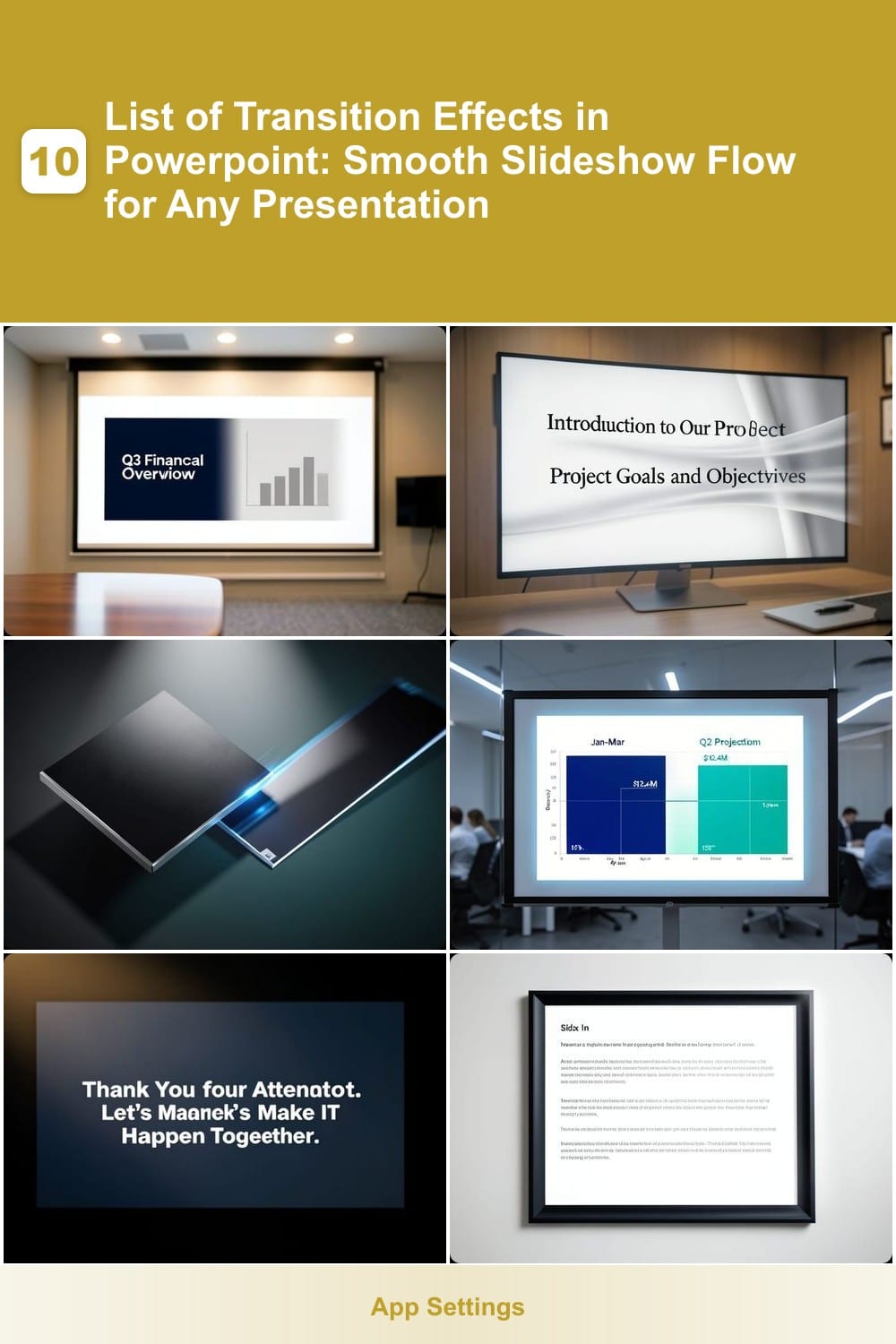
Want to make your PowerPoint presentations more engaging and professional? These seven transition effects will help you create smooth, polished slideshows that keep your audience focused and impressed—without looking amateurish.
Fade Slide Transition
Need a transition that feels polished yet professional? The Fade Slide Transition is the gold standard for corporate and formal presentations—it smoothly dissolves one slide into the next without drawing attention away from your content.
Available in every version of PowerPoint (including 2016, 2019, and 365), this effect offers zero visual clutter, making it perfect for boardroom decks or client pitches. You can adjust the speed (from 0.5s to 5s) and even add a subtle sound effect for extra polish. It’s also compatible with all slide layouts, ensuring consistency across your entire presentation.
This is the go-to choice for executives, trainers, and educators who prioritize clarity and professionalism over flashy animations. ⚡
Slide Wipe Left
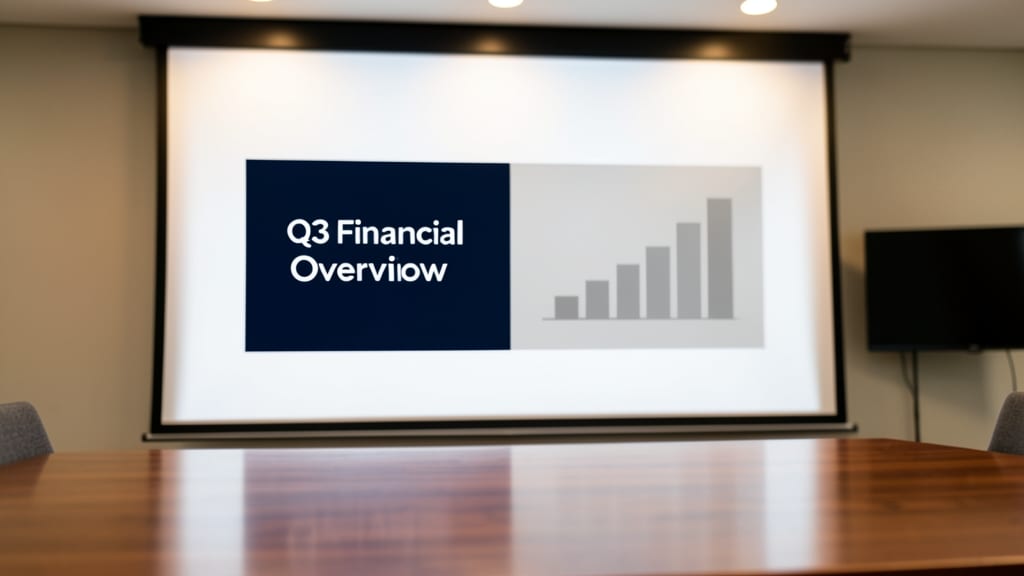
When your presentation needs to feel like a guided journey—think of Slide Wipe Left as your storytelling secret weapon. This transition replaces the static slide shift with a smooth horizontal sweep, creating a sense of intentional movement that subtly directs your audience’s focus.
Available in PowerPoint 2013 and later, it offers four direction options (left, right, up, or down) and lets you adjust speed for dramatic pacing. The wipe effect works especially well when paired with bullet points or diagrams, as it visually "unveils" content like a curtain lifting. For academic lectures or training modules, this transition reinforces the idea of progression without overwhelming the viewer.
Perfect for educators, trainers, or anyone presenting sequential concepts—just avoid overusing it in fast-paced talks where clarity matters more than visual flair. ✨
Push Transition
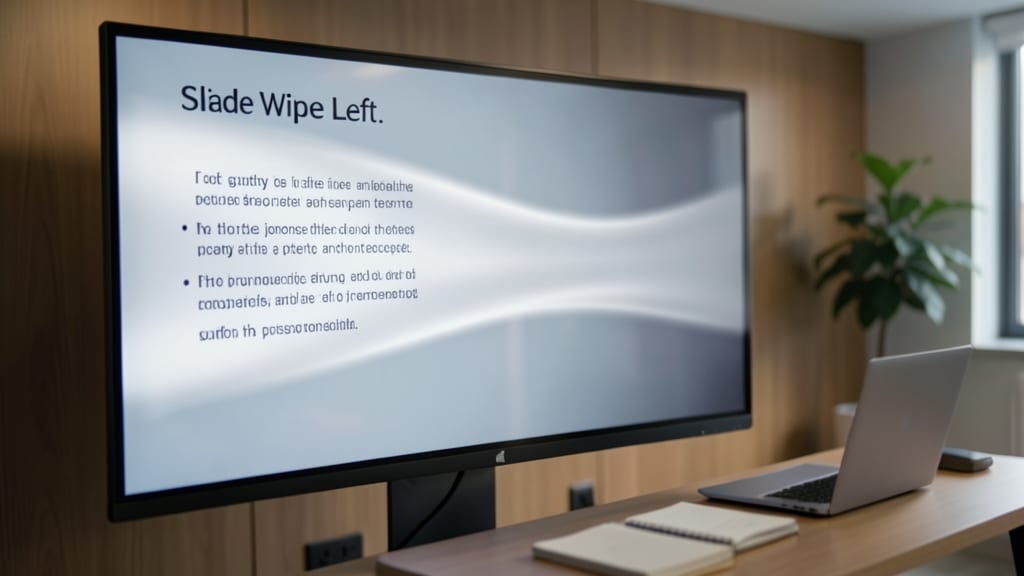
Ready to inject energy into your slides? The Push Transition isn’t just another slide shift—it’s a 3D push effect that makes your presentation feel like a blockbuster trailer. One slide literally "pushes" the next forward, creating depth and motion that grabs attention instantly.
Available in PowerPoint 2013 and later, this effect works best with high-contrast backgrounds to emphasize the push. Adjust the speed (slow for dramatic impact, fast for quick cuts) and even flip the direction (left/right) in the Transition tab. Pro tip: Pair it with bold typography to make your key messages pop.
Perfect for launch presentations, creative pitches, or marketing decks where you want to showcase momentum. Just don’t overuse it—save this cinematic effect for moments that need to stand out. ✨
Morph Transition
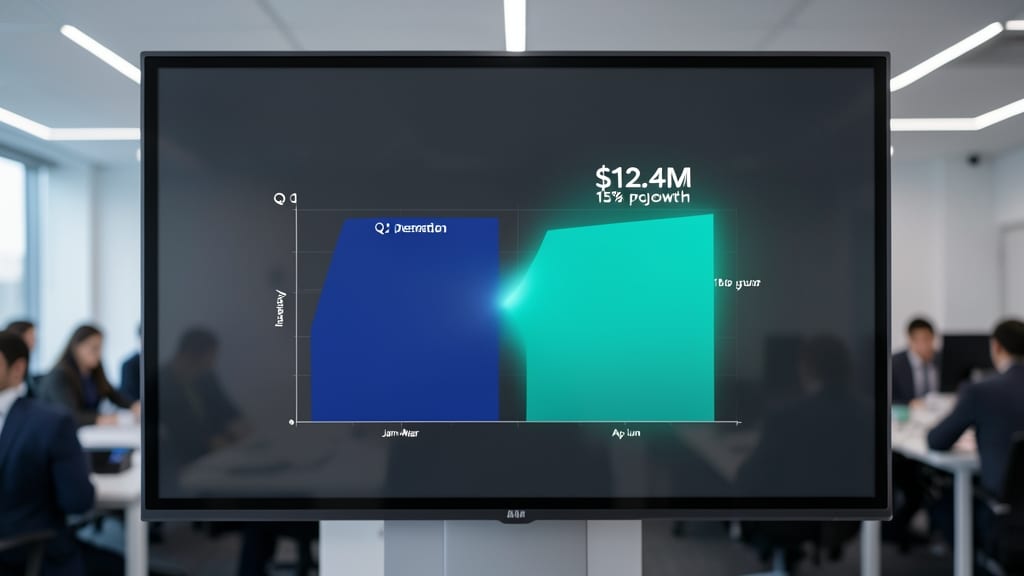
When your slideshow hinges on data comparisons—like quarterly earnings or project milestones—Morph Transition turns static numbers into dynamic storytelling. Unlike abrupt cuts or directional wipes, this effect lets you animate changes within a single slide layout, preserving your audience’s focus on the content itself.
Available in PowerPoint 2016 and later, Morph works by detecting visual similarities between slides (e.g., charts, tables, or text placeholders) and smoothly interpolating the differences. You can control the transition speed (from 0.5s to 5s) and even lock specific elements (like logos) to prevent unwanted movement. For presentations where precision matters—like financial forecasts or scientific data—this is the only transition that keeps the narrative intact while adding visual polish.
Perfect for analysts, educators, or executives presenting complex data, Morph ensures your audience sees the evolution of information—not just the next slide. ✨
Zoom Transition
Need to make sure your audience remembers that call-to-action slide or closing argument? The Zoom Transition delivers a cinematic effect that feels like a spotlight landing on your most important content.
This transition smoothly zooms in from a smaller scale to full screen, creating a dramatic pause that naturally draws eyes to key slides. You can adjust the speed (from 1 to 10 seconds) and even set it to zoom from any corner—perfect for emphasizing a final slide or big reveal. PowerPoint 2016 and later versions include this built-in effect, with no extra plugins needed.
Presenters pitching ideas, trainers wrapping up modules, or speakers delivering keynotes will love how this transition subtly signals that what follows is worth paying attention to. Just don’t overuse it—save it for moments that truly matter! ✨
Box In Transition
Need to make your training materials feel more structured and engaging? The Box In Transition adds a visual frame that subtly signals "this content matters," perfect for educational or instructional slideshows where clarity is key.
This transition creates a border effect that "pops" inward, drawing attention to the slide’s content while maintaining a clean, organized look. It works best in PowerPoint 2016 and later, and you can adjust the speed and direction (inward/outward) to match your pacing. Unlike flashy effects, it keeps focus on the material without overwhelming the audience.
Educators and trainers will love this for lesson breakdowns, step-by-step guides, or key takeaways—it visually reinforces the structure of your content. 🌟
Random Bars Transition
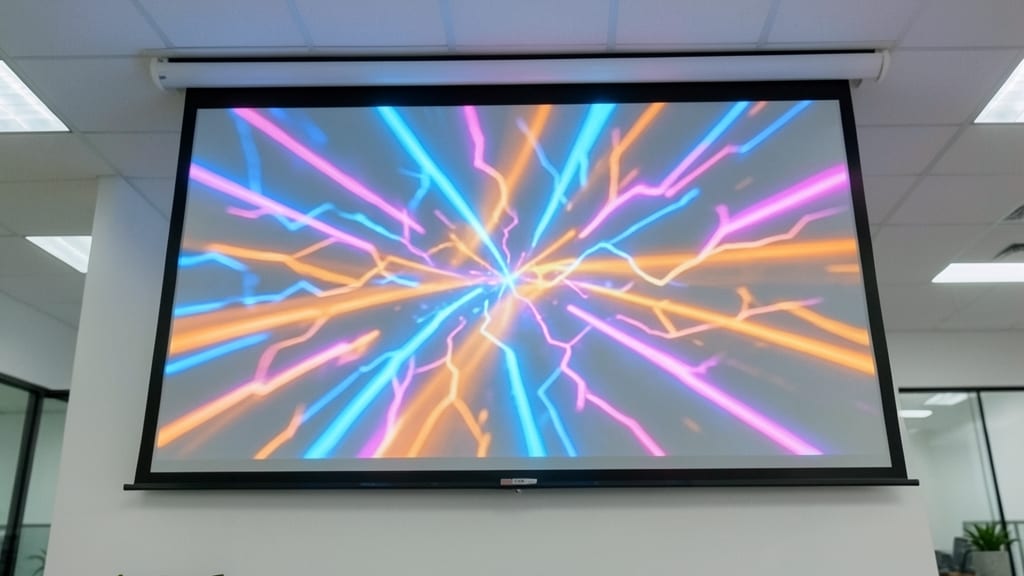
Tired of predictable slideshows that put your audience to sleep? The Random Bars Transition injects energy into your brainstorming sessions with its playful, unpredictable motion—colorful bars sweep across the screen in random patterns, breaking the monotony of standard transitions.
This effect is built into PowerPoint 2016 and later, including the Microsoft 365 version, and lets you customize the speed (from slow to fast) and direction (horizontal or vertical). Unlike smoother transitions, it’s designed to spark curiosity, making it perfect for creative pitches or informal team meetings where you want to keep engagement high.
Ideal for startup founders, educators, or trainers hosting interactive sessions, this transition ensures no one checks their phone during your next big idea. ✨