
Tip & Trick
Microsoft Word is a powerhouse for productivity, but most users only scratch the surface. These seven hidden Microsoft 365 Word tips and tricks will transform how you work, saving you hours weekly and unlocking features you never knew existed.
Quick Parts Gallery for Reusable Content
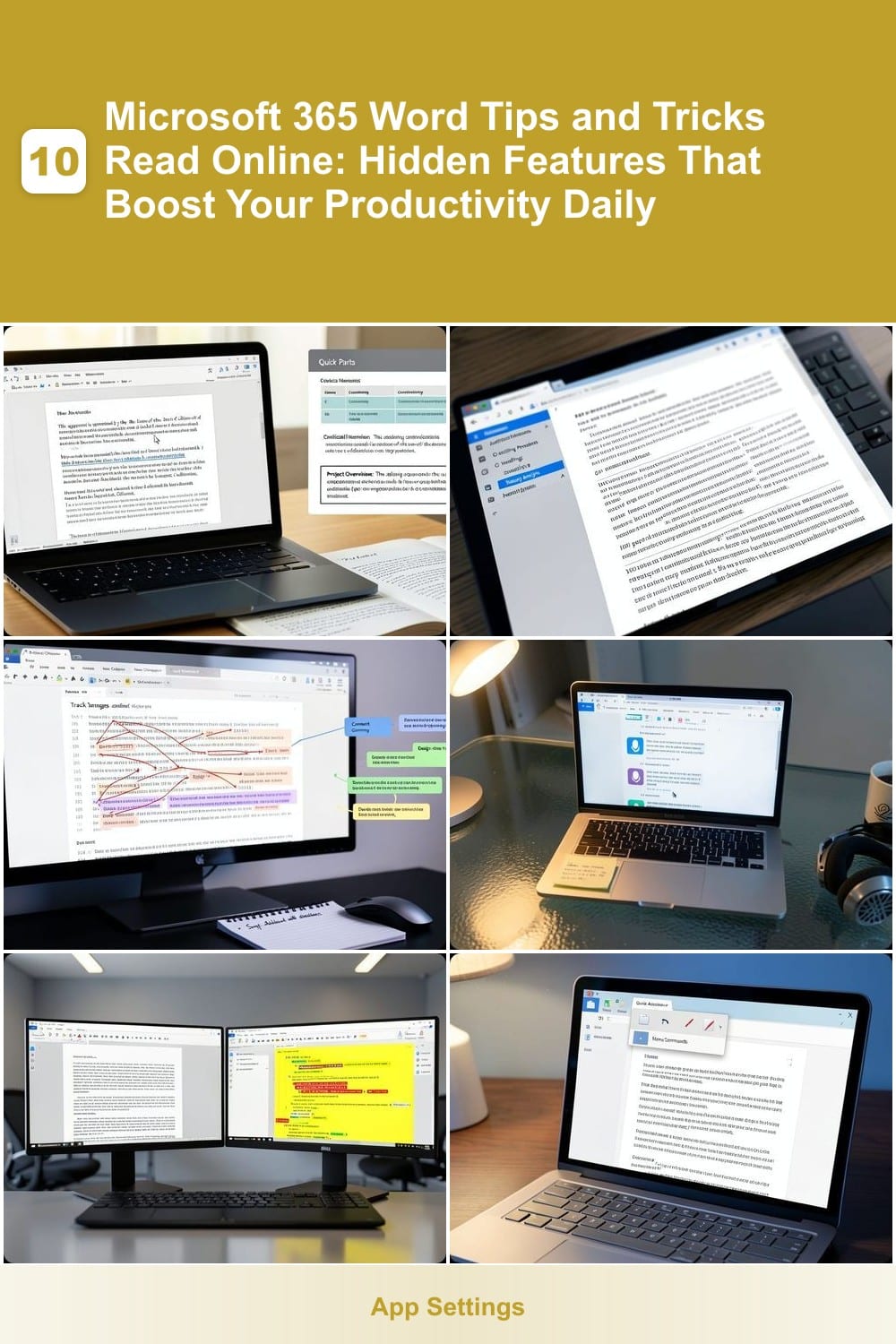
Tired of retyping the same disclaimers, boilerplate text, or complex tables in every document? The Quick Parts Gallery in Microsoft 365 Word lets you save and reuse content with just a few clicks—no copy-pasting required.
To use it, type your reusable text, select it, and click "Quick Parts" > "Save Selection to Quick Parts Gallery." Next time, simply navigate to Insert > Quick Parts and pick your saved item. You can even store tables, equations, or graphics for instant insertion. Pro tip: Organize entries into folders for a clutter-free workflow.
This feature is a game-changer for legal teams, contractors, or anyone drafting repetitive reports. Spend less time formatting and more time focusing on what matters. ✨
Navigation Pane for Large Documents
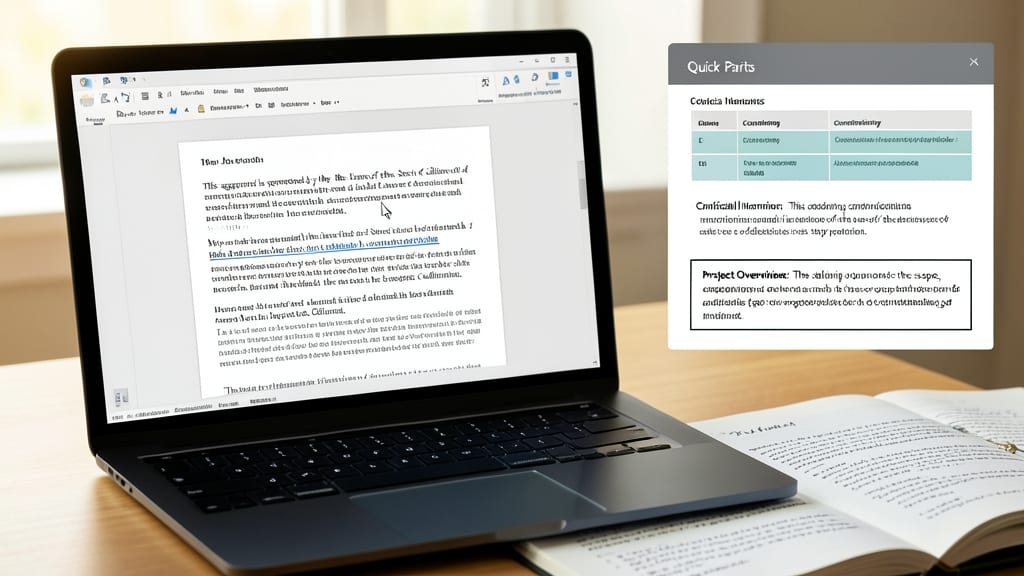
Tired of losing your place in a 100-page legal brief or struggling to find the exact section you need in a research paper? Microsoft Word’s Navigation Pane is your secret weapon—turning endless scrolling into instant jumps with just a click.
Access it via View > Navigation Pane (or press Ctrl+F for quick search). Here, you’ll see three tabs: Headings (for structured documents), Pages (to jump to specific page numbers), and Results (for keyword searches). Need to tweak a heading? Edit it directly in the pane, and Word updates your document instantly. This feature shines brightest for complex documents where tables of contents feel outdated.
Lawyers, technical writers, and academics will love this—no more wasting minutes searching for buried details. Try it on your next 50+ page document and watch your editing speed skyrocket. ✨
Track Changes with Comments and Highlights
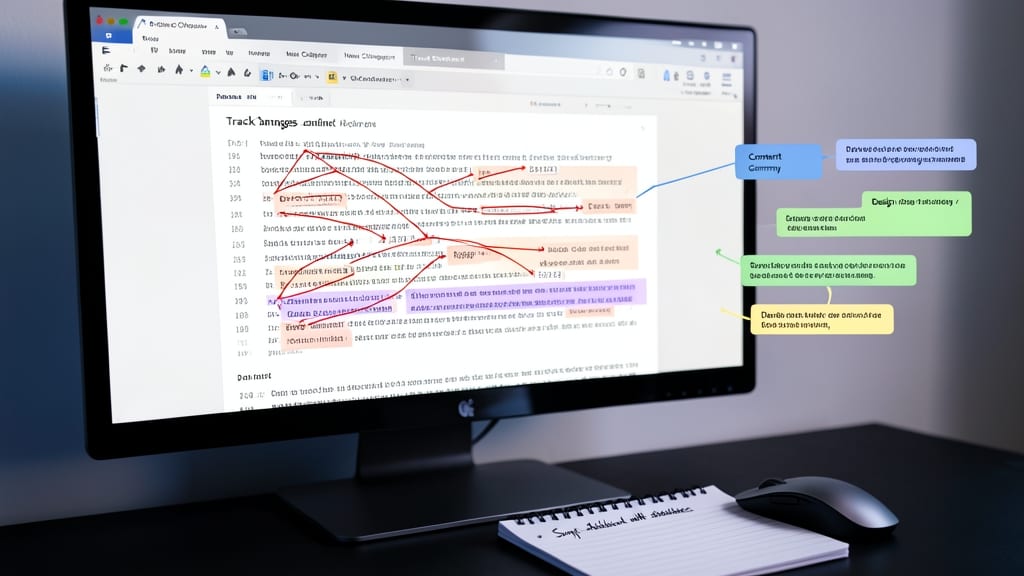
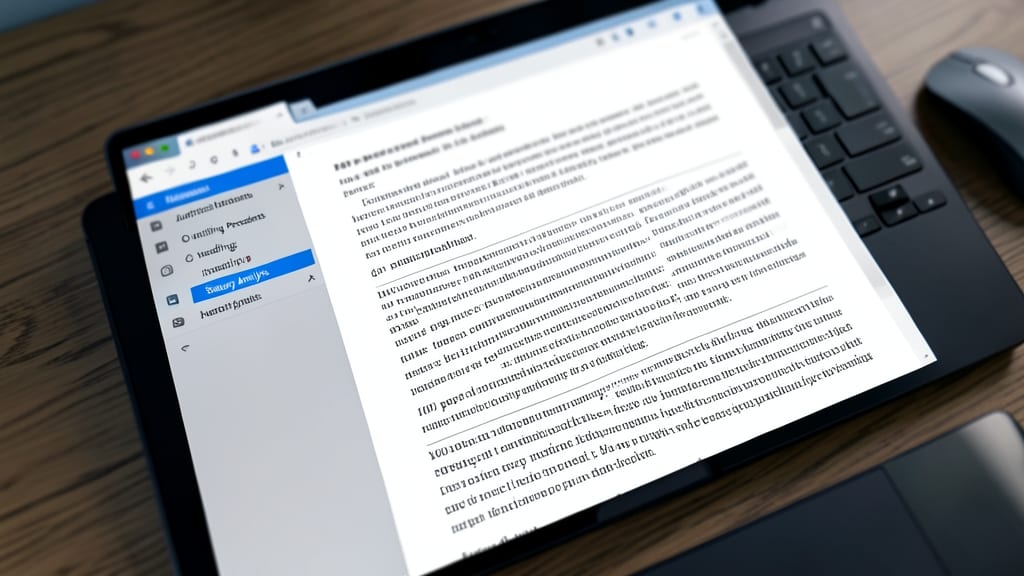
Turn messy feedback sessions into structured, actionable discussions with Track Changes paired with inline comments and color-coded highlights. This trio of features lets you annotate edits, flag specific sections, and leave notes—all without cluttering the document with separate emails or spreadsheets.
Enable Track Changes via the Review tab, then add comments by right-clicking text and selecting New Comment. Use the Highlights tool to mark key sections (yellow for notes, green for approvals, blue for questions). The result? A single document that tracks every revision, question, and decision—no back-and-forth needed.
Perfect for legal teams reviewing contracts, academic researchers refining papers, or marketing teams aligning on creative drafts. Say goodbye to version chaos! ✨
Dictate Text Using Your Voice
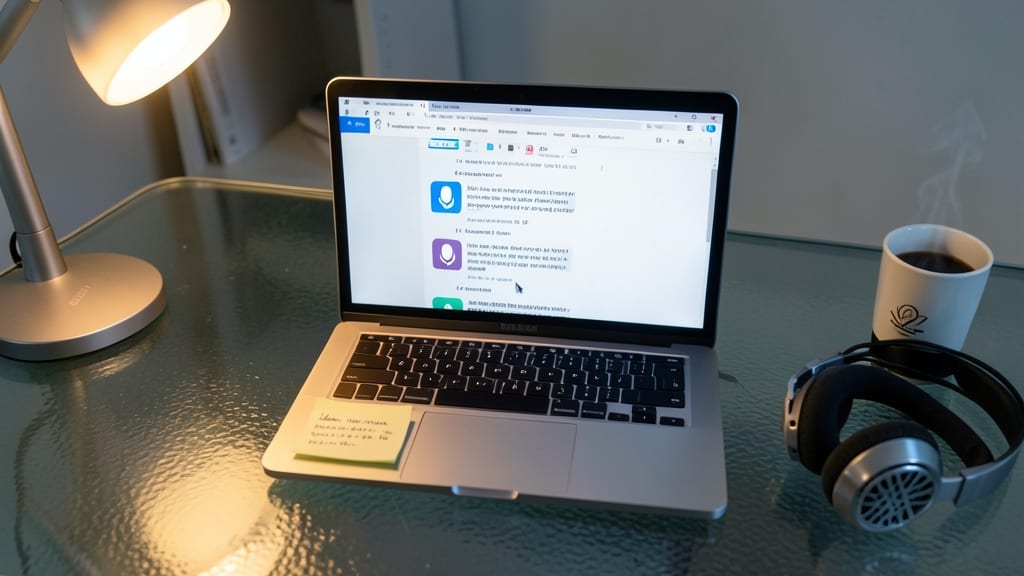
Tired of typing long emails or dense reports when your hands are full or your mind is racing? Microsoft Word’s built-in speech-to-text feature turns your voice into flawless text in real-time—no third-party tools required.
Simply click the microphone icon in the Home tab (or press Win + H on Windows) to start dictating. Word handles punctuation, formatting, and even commands like "new paragraph" or "bold" effortlessly. It supports 11 languages and adapts to your voice after minimal setup, making it perfect for accessibility or when typing slows you down.
This trick is a game-changer for legal professionals drafting briefs, journalists transcribing interviews, or anyone with repetitive strain injuries. Give it a try—your wrists will thank you! ⚡
Compare Two Documents Side-by-Side
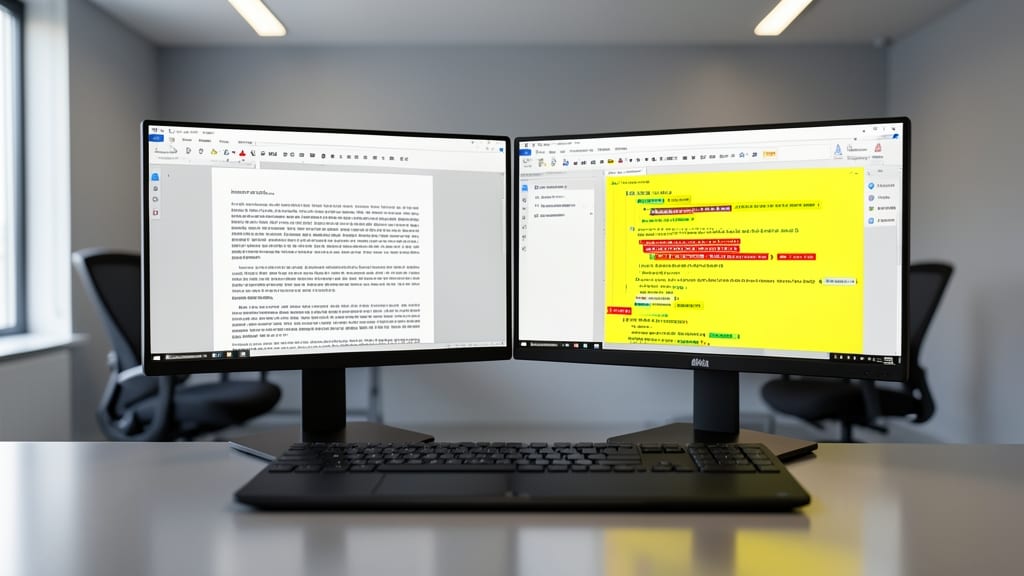
Ever spent hours manually comparing two versions of a document to find edits or discrepancies? Microsoft Word’s Compare feature lets you view two documents side-by-side in real-time, with changes highlighted in yellow for easy spotting.
Simply go to Review > Compare > Compare and select your original and revised files. Word instantly generates a merged document showing insertions, deletions, and formatting changes. You can even accept or reject changes individually without altering the originals. This is a game-changer for legal teams, editors, or anyone managing multiple drafts.
Perfect for collaborative workflows or version control, this tool saves hours of back-and-forth. Try it next time you’re reviewing a contract or project draft! ✨
Customize Quick Access Toolbar
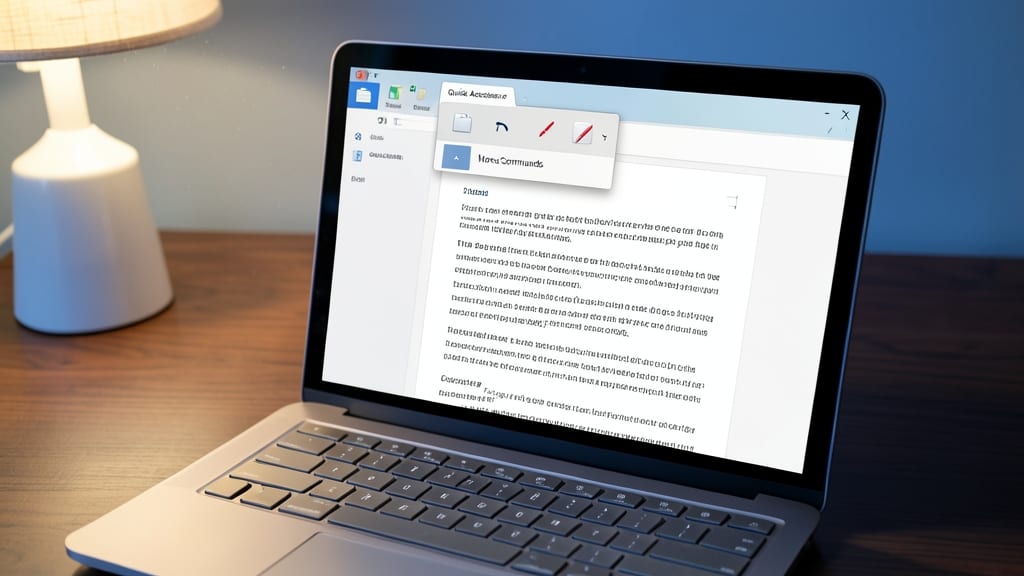
Tired of hunting through menus for the same commands every time you open Word? The Quick Access Toolbar lets you pin your most-used actions—like Save, Undo, or Track Changes—right where you need them, just one click away.
To customize it, click the dropdown arrow in the toolbar, then select "More Commands". Here, you can add favorites from the ribbon, like Insert Table or Find & Replace, or even custom macros for advanced workflows. The toolbar remembers your selections across documents, so your shortcuts travel with you. For extra speed, assign keyboard shortcuts to toolbar items via File > Options > Customize Ribbon.
This trick is a game-changer for legal professionals, editors, or anyone drowning in repetitive tasks. Spend less time navigating and more time writing—effortlessly. ⚡
Translate Text Instantly Within Documents
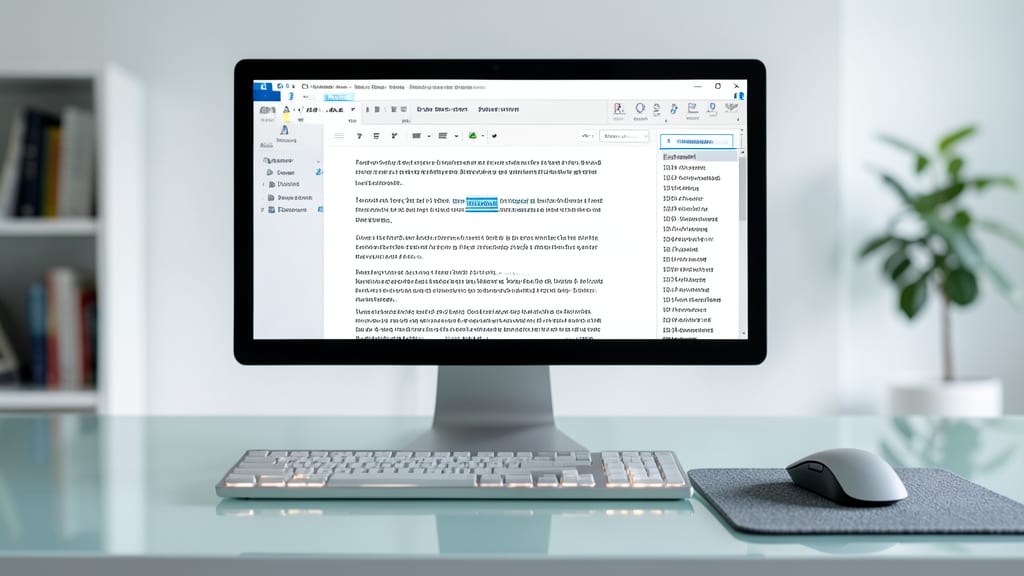
Say goodbye to copy-pasting text into Google Translate—Word’s built-in translation tool lets you convert words, paragraphs, or entire documents into 100+ languages with just a few clicks. No extra apps or browser tabs needed!
Select your text, click the Review tab, and choose Translate. Word instantly displays the translation in a floating pane, complete with pronunciation guides for 20+ languages. For full documents, use Translate Document in the Review tab to handle all text at once—perfect for multilingual reports or client communications.
This is a game-changer for global teams, freelancers with international clients, or language learners drafting essays. No more juggling tools—just seamless, accurate translations within Word’s familiar interface. ✨