
Troubleshooting
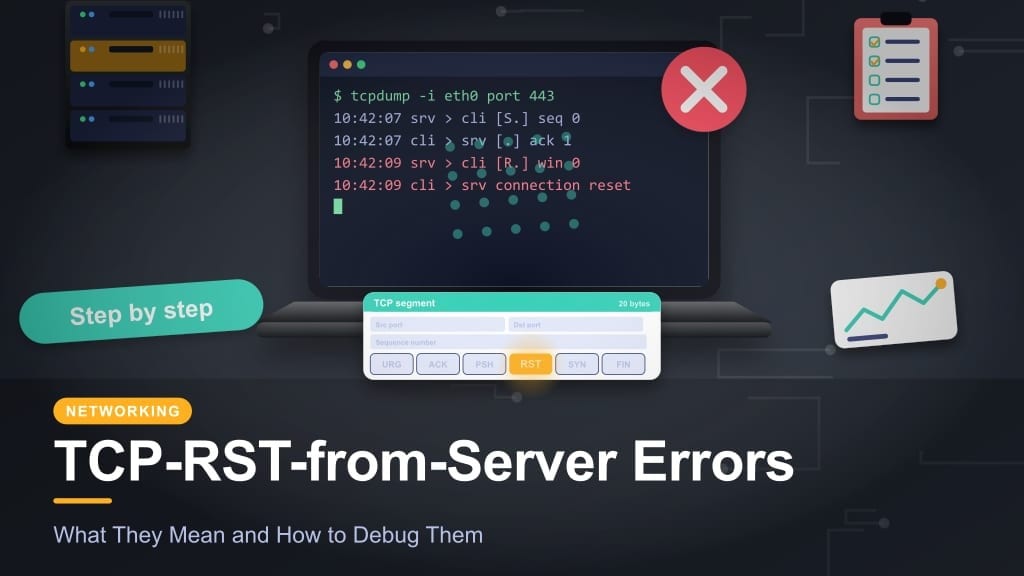
Seeing a TCP-RST-from-server error means your connection was forcibly reset by the server, not gracefully closed.
Picture this: you’re mid-download, mid-SSH session, or even mid-game—then poof—the server sends a "reset" signal instead of a polite "goodbye." This isn’t just a hiccup; it’s a red flag that something’s blocking, misconfigured, or outright broken on the server side.
Whether it’s a firewall rule gone rogue, a misbehaving app, or a network glitch, this error cuts connections short and leaves you scrambling for answers. The good news? With the right steps, you can pinpoint the culprit—whether it’s your local setup, the server itself, or something in between.
In this guide, I’ll walk you through what triggers these resets, how to diagnose them with tools like telnet, Wireshark, or server logs, and the fixes that actually work—no guesswork required.
What does a TCP-RST-from-server error actually mean?
A TCP-RST-from-server error occurs when a server abruptly terminates a connection using a TCP Reset (RST) flag instead of a graceful FIN packet. Unlike a normal disconnection, which follows the TCP four-way handshake, an RST is an immediate termination signal.
This often happens when the server detects an invalid request, security violation, or network misconfiguration.
Think of it like a phone call suddenly ending with a harsh click—no polite goodbye. The server isn’t just hanging up; it’s actively rejecting your connection attempt. This can disrupt SSH sessions, HTTP requests, or even database queries, leaving you with a broken connection and no explanation.
TCP Reset (RST) vs. FIN packets:
- RST: Immediate termination (like a forced crash).
- FIN: Graceful shutdown (like a polite goodbye).
Servers send RSTs for security breaches, protocol violations, or overloaded resources, while FINs are used for orderly closures.
Common triggers include:
- Firewall rules blocking or resetting connections.
- Misconfigured load balancers or proxies.
- Server-side crashes or resource exhaustion.
- Network address translation (NAT) issues.
For example, if you’re using SSH and suddenly get disconnected with an RST, it could mean your firewall (iptables/nftables) is dropping the connection, or the server’s TCP stack is rejecting your handshake due to a malformed packet.
Applications like HTTP/HTTPS may show this as a 502 Bad Gateway or connection refused error, while database connections might fail silently. The key is understanding whether the issue is on your end or the server’s.
| Scenario | Root Cause | Impact | Example |
|---|---|---|---|
| Firewall Blocking | iptables/nftables rules | Connection reset mid-handshake | SSH session drops |
| Server Overload | Resource exhaustion | RST sent to free connections | Web requests fail |
| Misconfigured NAT | Port forwarding issues | RST due to invalid routing | Remote access fails |
| Protocol Violation | Malformed TCP packets | Server rejects handshake | Database connection errors |
The TCP Reset (RST) flag is part of the TCP header and is used to immediately terminate a connection. Unlike FIN, which signals a graceful shutdown, RST is aggressive—it tells the client, “Abort immediately.”
This is why you’ll often see errors like “Connection reset by peer” in logs.
For instance, if you’re debugging a Linux server and see RST errors in /var/log/syslog, it might indicate a misconfigured service or a firewall rule that’s too restrictive. On Windows, Event Viewer might show similar errors under System Logs.
To diagnose, start by checking:
- Server logs for RST-related entries.
- Firewall rules (e.g.,
iptables -Lor Windows Firewall settings). - Network tools like
tcpdumpor Wireshark to capture RST packets.
Understanding the difference between RST and FIN is critical. A FIN packet means the connection is closing normally, while an RST means the server is forcefully rejecting the connection. This distinction helps you pinpoint whether the issue is a security policy or a software bug.
For example, a load balancer might send RSTs to free up resources during high traffic, while a corrupted packet could trigger an RST from a database server. Always verify whether the issue is client-side or server-side before diving into fixes.
Step-by-step debugging guide for TCP-RST errors
A TCP-RST-from-server error means the server abruptly terminated your connection by sending a TCP Reset (RST) flag. Unlike a graceful FIN packet, this signals immediate disconnection, often due to firewall rules, server misconfigurations, or network conflicts.
To diagnose, start with logs and basic tests before diving into deeper tools like Wireshark or iptables. My approach focuses on isolating whether the issue is client-side or server-side first.
Before running commands, ensure you have admin/root access on both client and server. On Linux, use sudo privileges; on Windows, run Command Prompt as Administrator.
Gather these tools: netstat, ss, telnet, nc (netcat), and Wireshark (optional but powerful). Start with simple checks—most TCP-RST issues resolve at this stage.
journalctl -u service-name --no-pager | grep -i "rst"
or check /var/log/syslog. On Windows, review Event Viewer → Windows Logs → Application for TCP-related warnings.
ss -tulnp | grep port-number
or netstat -tulnp. Look for ESTABLISHED connections abruptly closing—this confirms a TCP-RST event.
telnet server-ip port
or nc -zv server-ip port. If the connection drops instantly, the server firewall or service is likely blocking it.
sudo iptables -L -n -v
or sudo nft list ruleset. Look for DROP rules targeting the port or IP range.
sudo tcpdump -i eth0 -n port port-number -w capture.pcap
Filter for TCP RST flags in the packet details pane.
net.ipv4.tcpmaxsynbacklog=4096
then run sysctl -p. For Windows, adjust TCP/IP settings via Registry Editor under HKEY_LOCAL_MACHINE\SYSTEM\CurrentControlSet\Services\Tcpip\Parameters.
If the issue persists after steps 1–3, the problem is likely server-side. For Windows Server, check Windows Defender Firewall or third-party AV blocking the port. On Linux, ensure the service (e.g., Apache, SSH) isn’t crashing—restart it with sudo systemctl restart service-name.
Always test fixes incrementally to pinpoint the exact cause.
For client-side issues, your local firewall (e.g., Windows Defender or UFW) might be sending RSTs. Temporarily disable it to test. If the error stops, adjust the outbound rules to allow the port or IP. Remember: TCP-RST errors are rarely hardware-related—focus on software/configuration first.