
Coding
Struggling to clean, extract, or transform messy text data in Excel? These 10 powerful text functions will help you solve real-world data problems—from fixing inconsistent formats to automating repetitive tasks—with practical examples you can use immediately.
Concatenate Function for Combining Text Fields
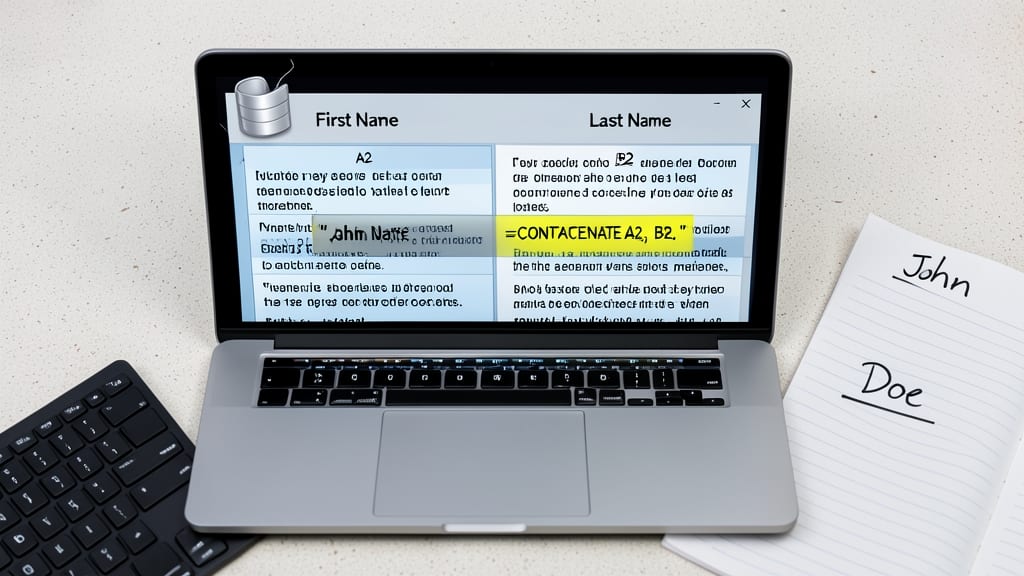
Tired of manually typing full names or product descriptions from split columns? The CONCATENATE function merges text from multiple cells into one with just a simple formula—no copy-pasting required.
In Excel, type =CONCATENATE(A2, " ", B2) to combine first names (A2) and last names (B2) with a space in between. For e-commerce, merge product titles (e.g., =CONCATENATE(C2, " - ", D2)) to create clean, professional listings. Add a delimiter like a comma or hyphen to separate fields. Even better, use CONCATENATEX (Excel 2019+) for dynamic delimiters and skipping blanks.
HR teams standardize employee names, while e-commerce sellers auto-generate product IDs—all without errors. Perfect for datasets where consistency matters most. ✨
Text to Columns for Splitting Delimited Data

When CSV files or log exports dump all your data into a single column, Text to Columns is the fastest way to restore order. Whether you're parsing server logs with semicolon-separated values or cleaning up a comma-delimited export from a CRM, this tool splits text into columns based on delimiters—no manual cutting and pasting required.
Start by selecting your data, then navigate to Data > Text to Columns. Choose Delimited and specify your separator (comma, tab, or custom character). For tricky formats, preview the split using the Finish button before committing. The wizard even handles fixed-width data if your columns align by character position instead of delimiters.
IT admins and analysts will love how this function turns unreadable blobs of text into structured datasets in seconds—ideal for auditing, reporting, or feeding data into other tools. ⚡
LEFT, RIGHT, and MID Functions for Extracting Specific Characters

Need to extract ZIP codes, product SKUs, or serial numbers buried in messy text? The LEFT, RIGHT, and MID functions are your precision scalpel for pulling exact character segments from strings—no manual copying required.
Use LEFT(A1,5) to grab the first 5 characters (like a ZIP code), RIGHT(A1,3) for the last 3 (like a file extension), or MID(A1,7,4) to extract a specific segment (like a product code). These functions work with dynamic ranges, so you can adjust positions and lengths as your data evolves. Combine them with FIND to locate positions automatically, making them ideal for standardized formats.
Perfect for inventory managers pulling part numbers or finance teams extracting account codes—no more tedious cut-and-paste. ⚡
TRIM Function for Cleaning Extra Spaces

When you import data from PDFs, web scrapes, or legacy systems, those extra spaces can turn your clean dataset into a formatting nightmare. The TRIM function is your secret weapon for instantly removing leading, trailing, and multiple internal spaces—no manual edits required.
With just =TRIM(A1), you can fix messy text like " John Doe " and turn it into "John Doe" in seconds. It even handles non-breaking spaces (common in web data) that other functions miss. Best of all, it’s zero-config: paste the formula, drag it down, and watch your data transform instantly.
This is the go-to tool for data analysts, marketers, or anyone wrestling with imported datasets. ⚡
SUBSTITUTE Function for Replacing Text Patterns

Tired of manually fixing typos or outdated terms across hundreds of rows? The SUBSTITUTE function is your secret weapon for instant text cleanup. Whether you’re updating old URLs, correcting job titles, or standardizing abbreviations, this function automates replacements with surgical precision.
With syntax like =SUBSTITUTE(text, oldtext, newtext, [instance_num]), you can replace all occurrences of "USA" with "United States" or pinpoint the third instance of a typo. It handles everything from simple typos to complex pattern updates—like swapping "http://" with "https://" across an entire marketing dataset.
Marketers and HR teams will love how it eliminates manual edits, while developers can use it to sanitize log files or clean API responses. Try it today and say goodbye to tedious find-and-replace tasks! ✨
UPPER, LOWER, and PROPER Functions for Text Case Formatting
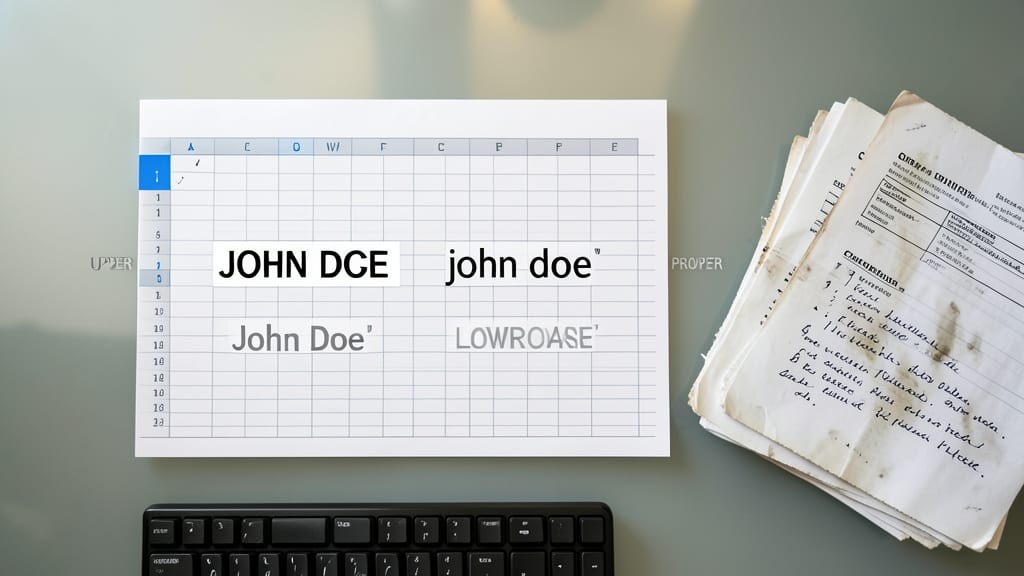
Tired of inconsistent text formatting ruining your reports? The UPPER, LOWER, and PROPER functions instantly standardize case—whether you're fixing client names, report headers, or legal documents.
Use UPPER(A2) to convert all text to uppercase (e.g., "JOHN DOE"), LOWER(A2) for lowercase (e.g., "john doe"), or PROPER(A2) to capitalize the first letter of each word (e.g., "John Doe"). These functions work across entire columns with a single drag, saving hours of manual edits. Perfect for ensuring brand consistency or meeting strict formatting requirements.
Legal teams, marketers, and presenters will love how these functions eliminate formatting guesswork. Try them on your next dataset to make every word look polished and professional. ✨
FIND and SEARCH Functions for Locating Text Within Strings

When you need to hunt down specific text patterns—like tracking down email addresses in a customer list or flagging error messages in system logs—FIND and SEARCH become your secret weapons. Unlike functions that clean or combine text, these two pinpoint exactly where a substring lives within a larger string, returning its position as a number.
The FIND function is case-sensitive, making it perfect for precise matches (e.g., locating a ‘@’ symbol in an email at position 5). Its cousin, SEARCH, ignores case and wildcards ( and ?), so it’s ideal for flexible searches like finding ‘error’ anywhere in a log file. Both accept a start_num argument to begin searching from a specific position, and they return #VALUE! if the text isn’t found—so always wrap them in IFERROR for robustness.
QA testers will love using these to validate data entries, while support teams can automate troubleshooting by extracting error codes. For developers, combining FIND with LEFT or RIGHT lets you isolate dynamic segments—like pulling everything before* the first comma in a string. 💡
LEN Function for Counting Characters in Cells
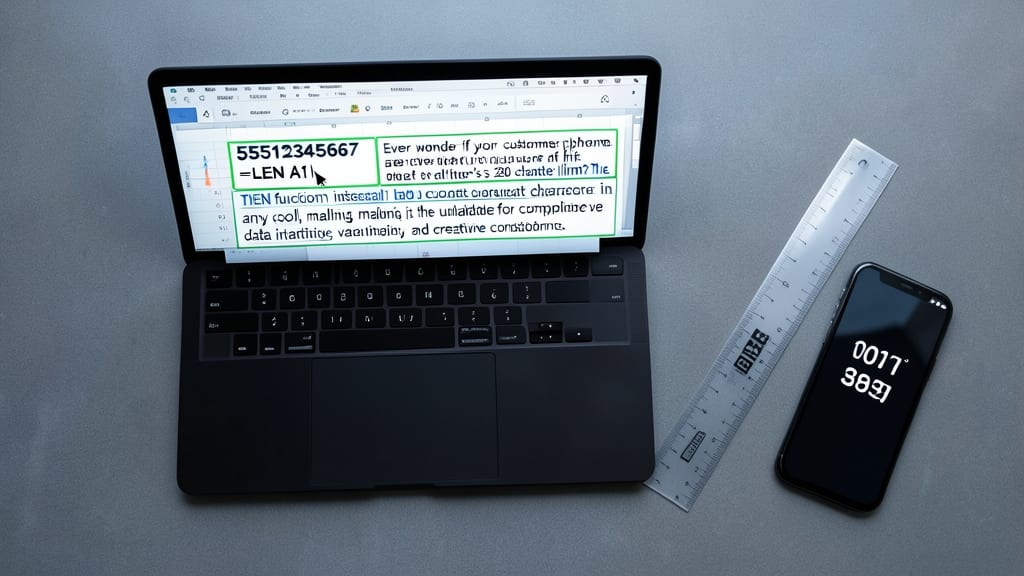
Ever wonder if your customer phone numbers are all 10 digits—or if that tweet draft hits Twitter’s 280-character limit? The LEN function instantly counts characters in any cell, making it the ultimate validator for compliance, data integrity, and creative constraints.
With just =LEN(A1), you’ll get the exact character count of any text string. Use it to enforce 10-digit phone numbers (e.g., =IF(LEN(B2)=10, "Valid", "Invalid")), validate 500-character tweets, or ensure product descriptions meet platform requirements. It even works with spaces and special characters, so no hidden surprises slip through.
Social media managers will love using it to plan content, while compliance officers can automate data validation—no more manual counting or guesswork. Perfect for anyone working with structured text constraints. 💡
TEXTJOIN Function for Conditional Text Combination

Say goodbye to manual comma-separated lists and hello to the TEXTJOIN function—Excel’s smartest way to combine text while automatically skipping empty cells. Unlike CONCATENATE, which forces every cell into the mix, TEXTJOIN lets you define a delimiter (like a comma or space) and only includes non-blank values, saving hours of cleanup.
Use =TEXTJOIN(", ", TRUE, A2:C2) to merge cells A2 through C2 with commas, but only if they contain text. The TRUE argument ignores empty cells, while FALSE treats them as zeros. For dynamic report headers, combine it with IF to conditionally include values—like pulling only filled product categories into a single cell. Works in Excel 2016+ and Office 365, with no need for VBA.
Perfect for inventory managers generating part lists or marketers compiling dynamic bullet points—no more deleting blanks or fixing broken formulas. ⚡
CHAR and CODE Functions for Working with ASCII Values

Need to work with hidden characters, custom delimiters, or legacy data encoded in ASCII? The CHAR and CODE functions let you convert between text and ASCII values—perfect for developers debugging scripts or cleaning up old datasets.
Use CODE to extract the ASCII value of any character (e.g., =CODE("A") returns 65), or CHAR to generate special characters (e.g., =CHAR(10) creates a line break). This is especially useful for creating custom separators or fixing encoded text where standard delimiters fail.
Data scientists parsing logs or developers troubleshooting encoded strings will find these functions indispensable for precise text manipulation. 💻